
Blue Iris
Perspective SoftwareVideo Players & Editors
2.51.20K Reviews
- Version
- 3.0.46
- Installs
- 100.00K
- Age Rating
- Everyone
Screenshots
Our Review of Blue Iris
 Analysis by Appyee
I find Blue Iris makes the most sense when a camera system is already part of your routine and you want to check it from a phone. It is not a general-purpose video player or a simple camera app that works independently: it is a mobile companion to Perspective Software’s Blue Iris PC software. That distinction matters. If you already rely on the PC software, the app can be a useful handoff from desk to phone; if you are starting from scratch and want a plug-and-play home camera service, the setup may feel like more work than you need.
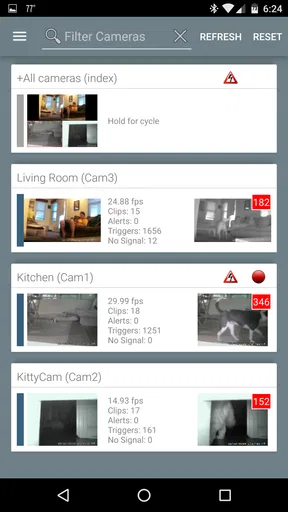
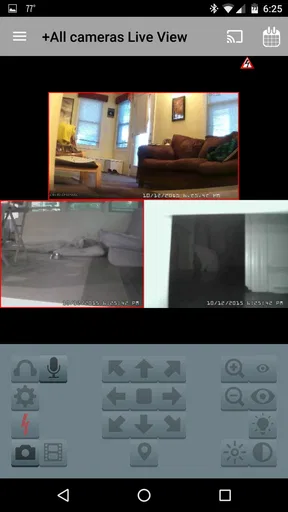
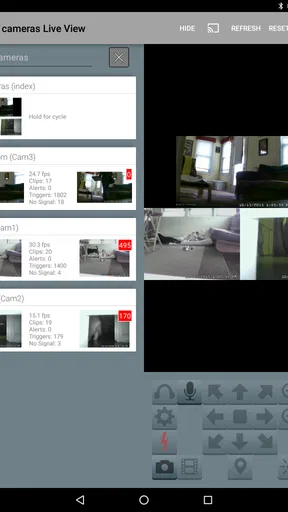
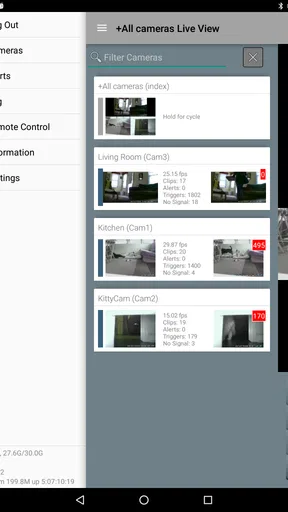
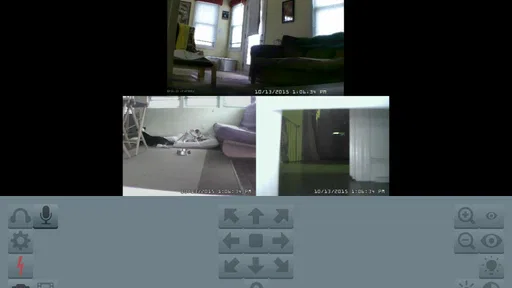
A typical use begins at home or in a small workplace, with cameras connected to the Blue Iris PC setup. From there, I would treat the phone as a way to check the live view, respond to an alert, and review a clip rather than as the place where the whole system is built. That division of labor is practical: the computer remains the center of the setup, while the phone gives you a quick way to see whether a delivery arrived or a room is as you left it.
Where it fits in a camera routine
The app is listed in the Video Players & Editors category, but its job is more specific than watching ordinary videos. It is aimed at people who want mobile access to cameras managed through Blue Iris on a PC. I would consider it for a home, workshop, or small office where the cameras and computer are already in place and someone is willing to spend time getting remote access working.
That PC connection is also the main trade-off. The app is not the same kind of all-in-one experience as a consumer camera service that guides you from buying a camera to viewing it in a single phone app. Blue Iris gives more room to work with a camera system, but that flexibility comes with configuration and a learning curve. If you do not want to manage a PC-based setup, a camera maker’s simpler mobile app is probably a better fit.
Following an alert through to a useful check
Imagine I am away from home when a motion alert arrives. The useful workflow is not simply receiving a notification; it is opening the app, checking the relevant camera, and deciding whether the event needs action. A zone that excludes a moving tree can make this routine less noisy, because not every change in the frame has to demand attention. I would tune sensitivity and monitored areas gradually, then watch how the alerts behave in ordinary conditions before relying on them.
For a front door, that can mean checking whether someone is actually at the entrance instead of reacting to every shadow or passing movement. For a pet, it can mean confirming that the animal is in a familiar room without leaving a live feed open all day. These are small, practical uses, but they show why a phone connection is valuable: the app turns the existing camera system into something I can consult while I am away, rather than a display I must be standing beside.
Clips, schedules, and the handoff back to the PC
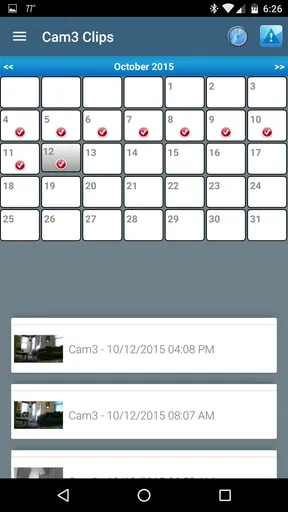
Recording can be scheduled, triggered by motion, or started on demand, and the app can be used to view recorded clips. That gives me a useful choice between keeping a routine record and focusing on events that matter. For example, a business owner might prefer a schedule during closed hours, while someone checking a home entrance may care more about motion-triggered events. The best choice depends on how much footage is useful to review and how much storage the overall setup can handle.
The practical handoff is from the PC-managed camera system to a quick mobile check, then back to the computer when a longer review or a change to the setup is needed. I would not treat a phone screen as a substitute for carefully managing every camera and recording decision. Instead, I see the app as a convenient remote window: it helps me decide whether an event deserves more attention, while the PC remains the foundation of the arrangement.
What the setup asks of you
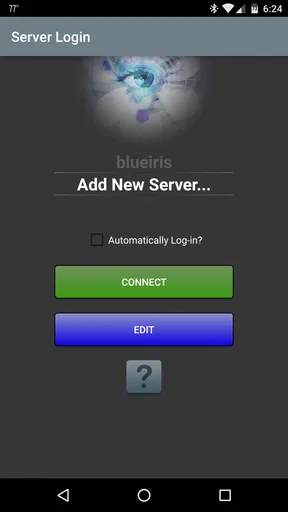
Adding cameras and making remote viewing work can involve network details such as an IP address and port, or a scan for cameras on the local network. That flexibility is handy when equipment is mixed, but the same choices can slow down someone who has never configured cameras or network access. Before depending on the system away from home, I would test it on the local network and then test remote access from a separate connection. A successful view at home alone does not prove the away-from-home workflow is ready.
I would also make alert tuning part of setup rather than an afterthought. Start with a small number of useful camera views, adjust motion sensitivity and zones, and check whether normal events create too many alerts. This is a less obvious but important trade-off: a highly sensitive system may appear reassuring at first, yet frequent irrelevant notifications can train you to ignore the one that matters. A quieter, well-tested setup is often more useful than trying to monitor every movement.
Getting Started with Blue Iris
Diving into Blue Iris is like stepping into a world where you control your own surveillance network. Installing the app is straightforward, but setting it up to work seamlessly with your cameras might take a bit of tinkering. Once you’ve got it up and running, though, you'll appreciate the effort.
The app supports a wide range of camera types, including webcams, network IP cams, and even analog cams. This flexibility is a huge plus if you’re working with a mix of old and new equipment. You can add cameras by simply entering the IP address and port, or let the app do the heavy lifting by scanning for cameras on your network.
Features That Stand Out
One of the coolest features of Blue Iris is its motion detection capabilities. The app doesn’t just alert you when it detects movement; it allows you to customize the sensitivity and even set up specific zones within the camera's view to monitor. I set mine to ignore the tree branches swaying in the wind, and it worked like a charm.
Recording is another area where this app shines. You can schedule recordings, or have them triggered by motion detection or on-demand. The ability to view recorded clips directly from the app is super convenient. Plus, you can store these recordings locally or in the cloud, depending on your preferences.
Keeping You Connected
Remote access is where Blue Iris truly excels. With the app installed on your phone, you can tap into your camera feeds from anywhere. Whether you’re at the office or on vacation, all it takes is a few taps to see what’s happening back home. It’s like having a CCTV setup without the hefty price tag.
The app also supports push notifications, so you’re always in the loop. I found this particularly useful for keeping tabs on my front door while I was at work. Knowing that I’d get an instant alert if someone approached was a great peace of mind.
Who should choose it—and who should pass
The strongest reason to choose this app is an existing Blue Iris PC installation. In that situation, the phone gives the system a more useful everyday reach: I can check a live view while away, respond to a notification, and look at a clip without sitting down at the computer. Someone with different camera models may also value the broad equipment approach described here, especially if replacing every camera just to match one manufacturer’s app would be inconvenient.
I would pass if my priority were the simplest possible setup, or if I wanted a phone app that managed cameras without relying on a PC-based Blue Iris system. A typical consumer camera app may be easier to learn and quicker to configure for a single device, though it can be less suited to a mixed-camera arrangement. Conversely, if I already manage several views through Blue Iris on a computer, switching to a basic single-camera app could make the overall workflow less unified. The right choice depends less on flashy mobile controls and more on what is already running at home.
Cost, support expectations, and day-to-day fit
The app costs $9.99, so I would judge that purchase against the role it plays in the larger setup, not against a free video player. If mobile access is something I will use to check cameras regularly, paying for a dedicated companion can make sense. If I only glance at the system once in a while, or have not yet configured the PC software, it is worth sorting out that foundation first rather than expecting the phone app alone to deliver a complete surveillance system.
It has an Everyone age rating, and its current version is 3.0.46, with a minimum OS requirement of 8.0. The app has a 2.5 average from around 2.8K ratings, alongside roughly 1.2K written reviews and over 100K installs. I would read that mixed reception as a reason to be realistic about the experience: this is a functional specialist tool, not an especially polished consumer interface. The developer is Perspective Software, and the app was released on Apr 1, 2013. Those details help set expectations, but the more important question is whether its PC-centered workflow matches how I want to handle cameras.
One practical habit I would adopt is to keep the phone workflow deliberately narrow. Use it for quick checks, alerts, and clip review; reserve detailed camera configuration and troubleshooting for the computer. That separation helps avoid trying to solve a network or system issue on a small screen while away from the equipment. It also makes the app easier to judge: if the live view and event check are the parts I need most, I can focus on whether those steps are reliable for my routine.
Room for Improvement
Now, while Blue Iris packs a punch with its features, it’s not all sunshine and rainbows. The user interface could use a bit of a facelift. It’s functional but feels a bit dated compared to some of the sleeker apps out there. Navigating the settings can be a tad overwhelming for newbies, so a more intuitive layout would go a long way.
Another aspect to consider is the initial setup. If you’re not exactly tech-savvy, getting everything configured might require some patience or a quick call to a friend who knows their way around network configurations.
There is also a difference between having remote access available and feeling confident using it. I would test the full chain before depending on it: confirm that the intended camera is visible, trigger a motion event under ordinary conditions, open the resulting alert, and make sure a clip can be reviewed from the phone. If one part of that chain is awkward, it is better to discover it while at home than during a trip or a busy workday. This kind of rehearsal is especially worthwhile when the system is meant to help someone else in the household, too.
My verdict after weighing the workflow
In a world where security is paramount, having a reliable surveillance app like Blue Iris can be a game-changer. It might require a bit of patience to set up, but once you do, the peace of mind it offers is invaluable. Whether you’re keeping an eye on your home, your business, or your furry friends, this app has you covered.
Overall, if you’re looking for a comprehensive yet flexible surveillance solution, Blue Iris is definitely worth considering. Just be prepared to spend some time learning the ropes, and you’ll be rewarded with a powerful tool that keeps you connected to what matters most.
My recommendation is conditional rather than universal: I would choose it when I already use the Blue Iris PC software and want a mobile route to selected cameras, alerts, and recordings. I would choose a simpler camera-maker app when quick onboarding matters more than flexibility, and I would not buy this expecting it to replace the PC foundation. For the right setup, the phone becomes a genuinely handy remote check-in point; for everyone else, the configuration effort may outweigh the convenience.
Verdict
Strengths of Blue Iris
- Comprehensive camera compatibility.
- User-friendly interface design.
- Highly customizable alerts.
- Robust remote access options.
- Efficient recording management.
Limitations of Blue Iris
- Steep learning curve for beginners.
- Resource-intensive on older devices.
- No native cloud storage support.
- Occasional connectivity issues.
- Limited customer support options.
Similar Picks in This Category
View All
Google TV
Google LLC3.9

iTunes
Apple4.7

YouTube
Google LLC3.8

MX Player
Amazon Mobile LLC4.2

CapCut - Video Editor
Bytedance Pte. Ltd.3.5

PLAYit-All in One Video Player
PLAYIT TECHNOLOGY PTE. LTD.4.5
Frequently Asked Questions
What is Blue Iris and what are its main features?
Blue Iris is a comprehensive video surveillance application compatible with Android and iOS devices. It primarily offers live and recorded video access, motion detection, and notification alerts. Key features include remote viewing, multi-camera support, and advanced scheduling options, making it ideal for both home and business security.
How does Blue Iris handle video storage and retrieval?
Blue Iris supports both local and cloud storage options for your video recordings. Users can choose to store videos on their device or integrate with cloud services for remote access. The app provides easy retrieval with a search feature that allows users to filter by date, time, or motion events.
Is Blue Iris compatible with various camera brands and models?
Yes, Blue Iris is known for its wide compatibility with numerous IP camera brands and models. It supports a range of protocols like ONVIF, RTSP, and HTTP, ensuring users can integrate their existing cameras without hassle. Always check the latest compatibility list for specific models.
What are the subscription options for Blue Iris and are there any additional costs?
Blue Iris offers a one-time purchase option and a subscription model for additional features like cloud services and advanced support. While the basic app provides essential functions, premium features may require in-app purchases. Review the app's pricing details to understand potential costs.
How user-friendly is the Blue Iris app for beginners?
Blue Iris is designed with a user-friendly interface, offering tutorials and a robust help section for beginners. While initial setup may require some technical understanding, the app provides detailed guides and community support to help users navigate features and settings effectively.
